Completing Player Registration Steps
Published on January 10, 2026
Step 1
Navigate to the Payment Page
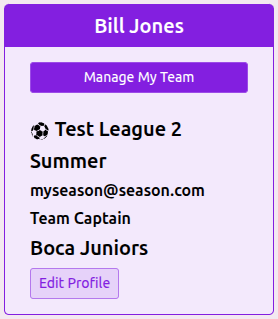
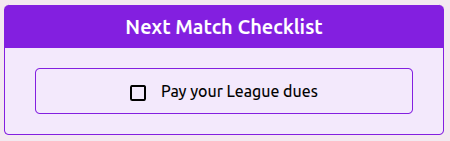
Go to the Payments Page or click the link from your Profile Page .
Step 2
Review the Payment Details
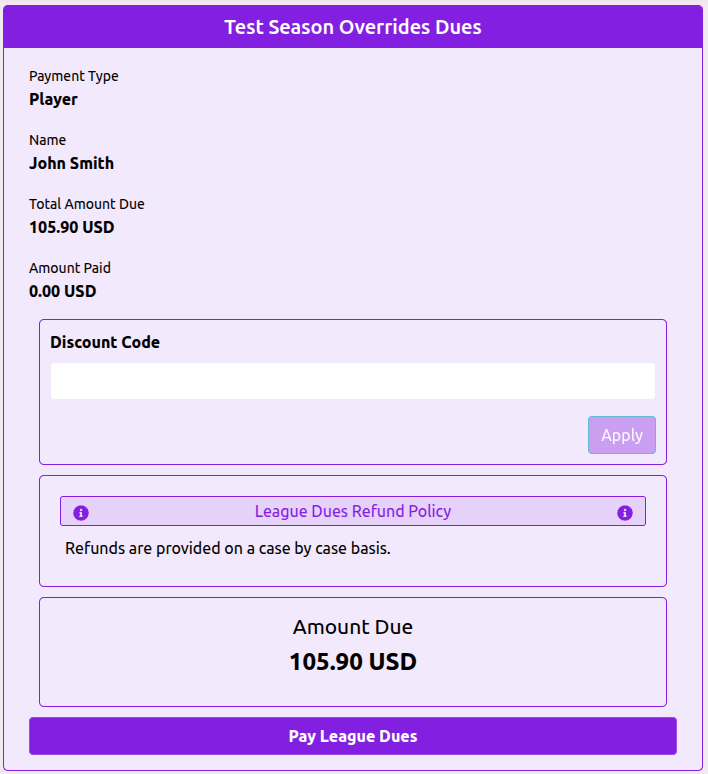
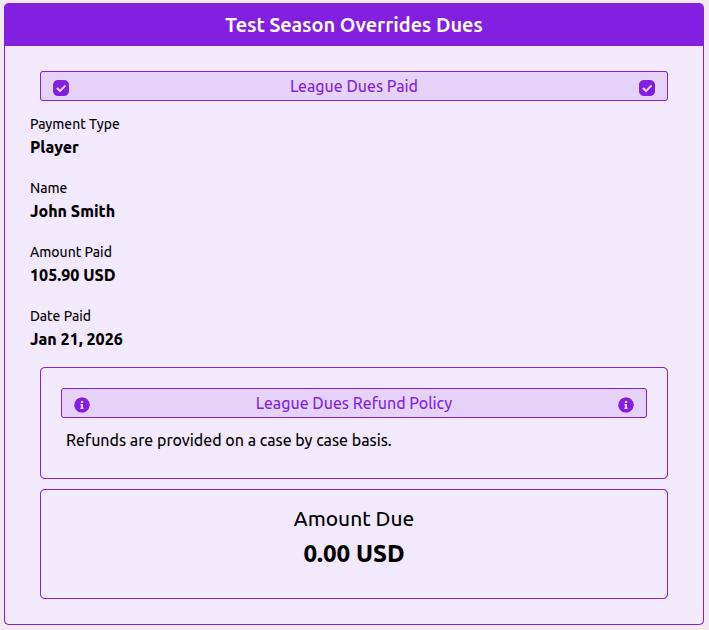
Check that the amount is correct. Here you can enter a discount code if you have one, or see any discount pre-applied by your league or club. Also review the refund policy, this is set by each league or club.
Step 3
Click Pay League/Club Dues
This will take you to the Stripe checkout page.
Step 4
Enter your Card Information
Enter your card details, and any other items the checkout page asks for.
Step 4
Click Pay
Click the Pay button. Be sure to wait for the page to complete processing to ensure your payment is fully captured. Once complete you will be returned to Ultimate Scoreboard and be able to view your completed payment.
Until the season is over you will be able to view the payment details here. For older season payments you can visit your History Page. All payments made in your account through Ultimate Scoreboard for any league or club are visible here.
Step 1
Open the Code of Conduct
Go to the Code of Conduct Page
Step 2
Review the Agreement
Read through the Code of Conduct.
Step 3
Confirm Agreement
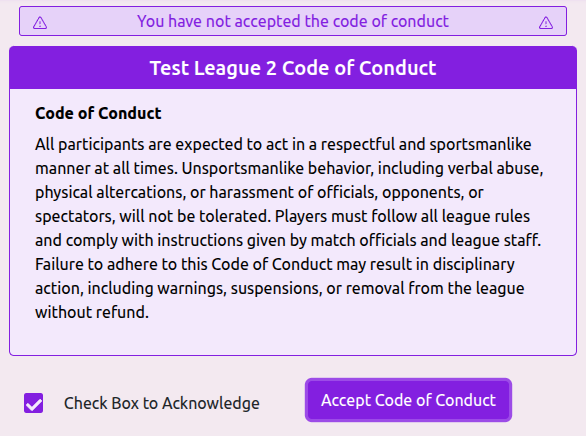
Check the box at the bottom of the page.
Step 4
Start the Signature Process
Click the Accept Code of Conduct button.
Step 5
Enter Your Name
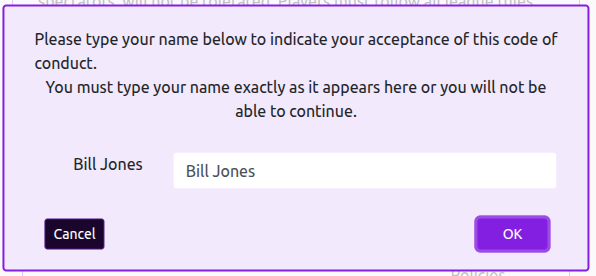
Type your name exactly as shown next to the input field.
Step 6
Submit
The OK button will appear once your name is entered correctly. Click OK to complete the process.
Once accepted the date you accepted will be visible. If any changes are made to the code of conduct by an admin your acceptance will be automatically revoked.

Step 1
Open Your Profile
Go to your Profile Page
Step 2
Add a Profile Image
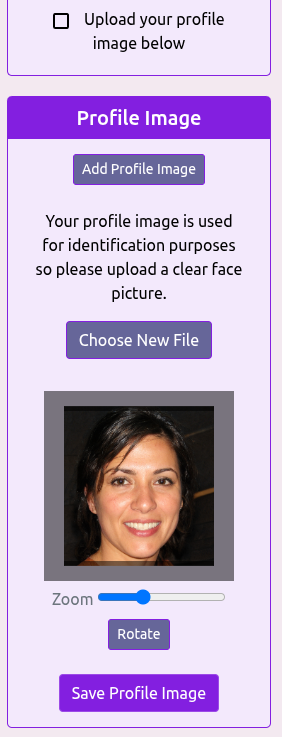
In the Profile Image section, click Add Profile Image. This section may be near the bottom of the page.
Step 3
Select an Image
Choose an image from your device.
Step 4
Adjust the Image
Zoom and rotate the image as needed.
Step 5
Save
Click Save Profile Image to apply your profile image.
Step 1
Open Your Profile
Go to your Profile Page
Step 2
Edit Your Profile
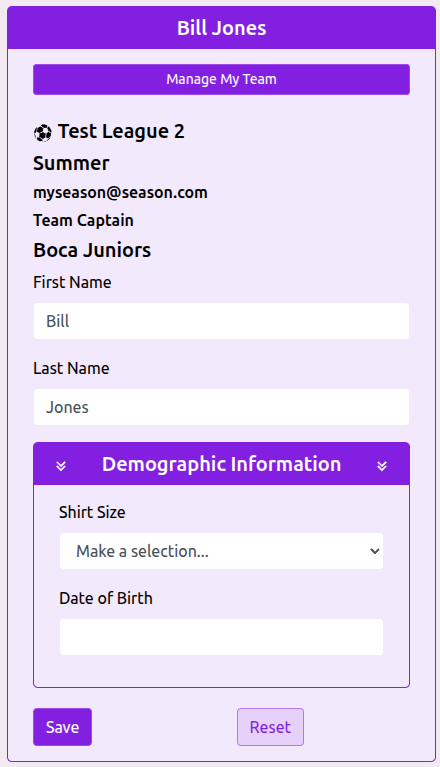
In the top-left section of the page, click Edit Profile.
Step 3
Open Demographic Information
Select Demographic Information from the profile editor.
Step 4
Enter Missing Details
Fill in any required or missing information.
Step 5
Save your Changes
Click Save to finalize your changes.